Register multiple learners
Download registration template and fill in the information
- Download the template registration.xlsx here. The file can be opened either with LibreOffice or with Microsoft Office.
Tipps regarding the template
- Do NOT enter any commas or semicolon as otherwise, the import would fail
- Enter all learners in the same tab. If you want to separate grades/classes, please use multiple files
- Do NOT amend the column headers as otherwise, the import will fail
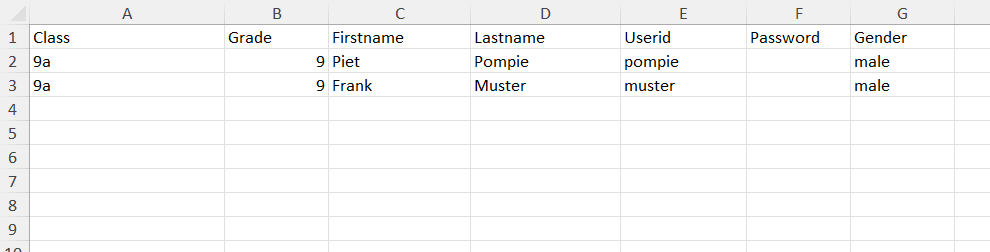
Enter the data:
- The following information is mandatory: class, grade, firstname, lastname, userid, password and gender
- Class: this is mainly internally for you, you can filter and check, how many classes participate
- Grade: this is crucial for the Bebras Challenge as it will determine, what tasks the learner will face during the challenge
- First- and Lastname: they will appear on the certificate after the Bebras Challenge
- Userid: this name must be unique in the system. it is advisable that you use a short form of your school name, followed by a combination of firstname and lastname. With this userid, the learner has to login for the Bebras Challenge.
- Password: If this field remains empty, the system will automatically generate a password when importing the file.
- Gender: you can use male or female and those data can later be used for your reports
Upload and import the file into the administrative system:
- Go to https://challenge.bebrasnamibia.com/admin/ and login with your coordinator userid and password
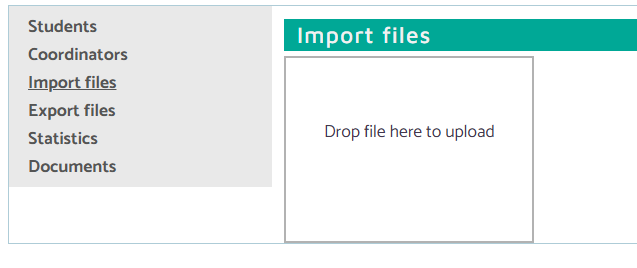
- Select "Import Files"
- Click on "Drop file here to upload" and select the prepared registration template to import
- The first lines of the file will now be shown instantly in the system
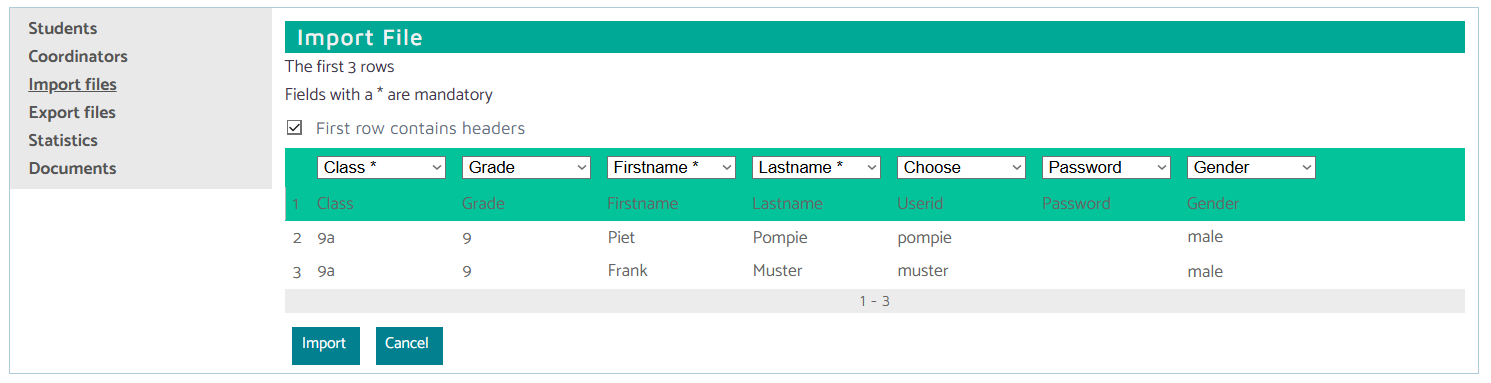
- Check carefully whether the columnames are accurate and show the correct learner information to import. If you have used the correct columnheaders in the template, the system will automatically recognize them
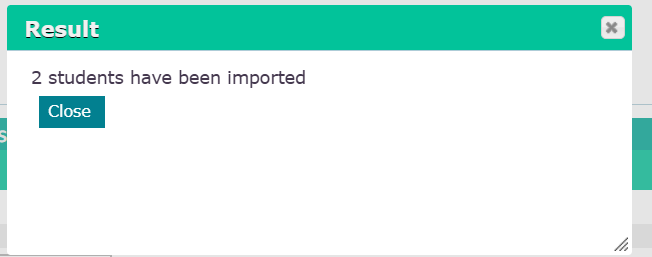
- Click on "Import" and wait for the message on the screen, that the data has been successfully imported.
Information regarding duplicated Userid's
It is possible, that userid's can be duplicated while importing learner data! While you can import it with your registration template, it can already be existing in the system.
- If you have created the already existing userid manually, the import will amend its data
- If another coordinator of your school has already created such a userid manually, your imported userid will be amended (e.g. a digit might be added), so that the userid is unique again all over the system
- Attention: Dont forget to download the list of learners with its userids and passwords before the Bebras Challenge, even if you import it with the registration t emplate.
Amending existing learners in the system
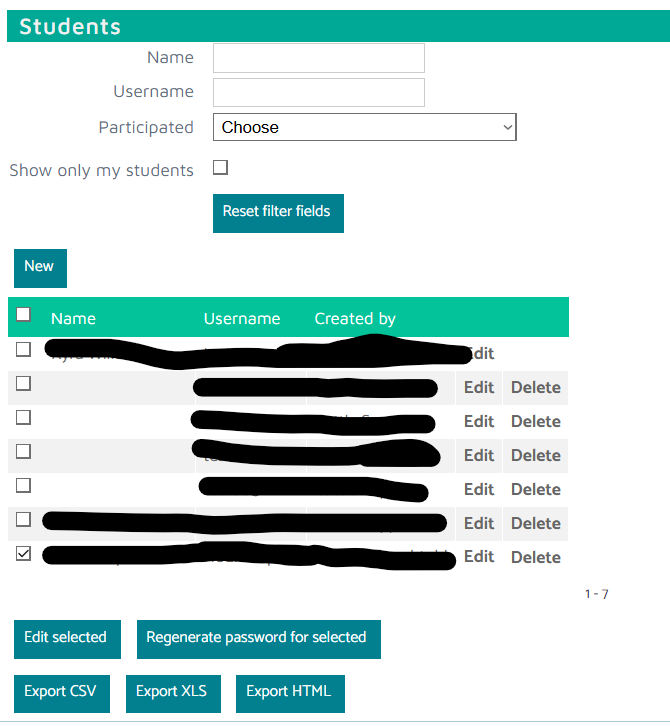
- Click on "Students"
- Check carefully if all imported learners are visible and complete
Download Learners Logins
- By entering name, userid, grade or class you can filter the list of students (Tipp: if you coordinate multiple classes, it probably makes sense to download a list per class or grade)
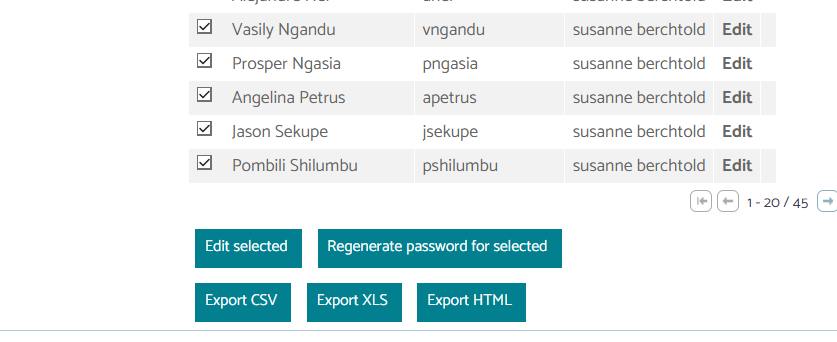
- You can download the connection details of the learners in 3 different formats:
- "Download CSV", you will get a CSV table with all learners, resp all filtered learners
- "Download Excel", you get an XLSX table with all learners, resp all filtered learners
- "Export HTML", you get a HTML file with nicely formatted "Login Cards" to printout and distribute amongst the learners

Edit Logins
- Klick on "Delete" to remove single learners
- Klick on "Edit" to make amendments to single learners
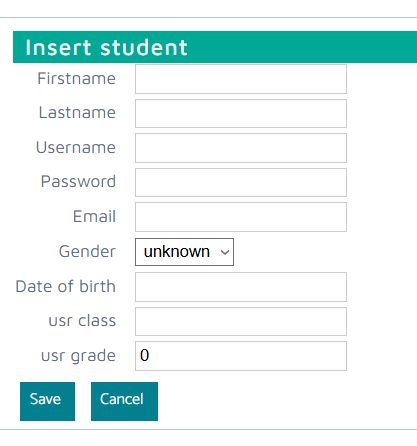
- Klick on "New" to add a single learner
- Select multiple logins and click on "Edit selected" to amend multiple learners. You can then amend only Firstname, Surname and Class.
Important: Download learners login BEFORE the Bebras Challenge
It is very important to download the file with the learners information (Userid and Password) before the Bebras Challenge. You and your learners will need those information to register for the Bebras Challenge!